
Appearance
Simple Issue Links for Jira Cloud
An easier way to link issues in Jira Cloud with streamlined workflows.
Introduction
The Simple Issue Links add-on provides an alternative and more powerful way to create relationships between issues. It includes the Issue Reference Field Type, which allows users to quickly and easily select an issue from a list generated using a configurable JQL query. The add-on also provides the ability to view and edit these relationships directly from the issue view.
The Issue Reference Field Type is an easy to use alternative to the standard Jira Issue Linking mechanism. It is a simple select list of Jira Issues. The contents of the select list are configured using a JQL statement, allowing users to select from a restricted list of issues.
For example, if you have a project which contains issues representing customers, and another project containing support requests raised by those customers, you can use an Issue Reference Field to establish a relationship between the two issues. You can even use this to automatically trigger the creation of a standard Jira issue link of a defined type.
The Issue Reference Field Type is ideal for building hierarchies, such as Parent Links, Portfolio structures, and Product Release hierarchies. With this tool, you can create multiple fields to store each type of relationship you need.
Note: Changes to Custom Field Configuration (September 5, 2022): We have changed how the custom field is configured. Instead of using the custom field context, we have provided a dedicated configuration screen for all fields of this type. You can easily migrate your old configuration to the new configuration screen.
Installation
Log into your Jira instance as a Jira Administrator.
Click the Apps dropdown and choose Find new apps.
- The Find new apps screen loads.
Search for Simple Issue Links and click on the app tile.
- The App Details screen loads.
Click Get app to start installing your app.
You're all set! Click Close in the Installed and ready to go dialog.
You can also install the app from the Atlassian Marketplace.
Configuration
Create an Issue Reference Custom Field
We start by creating the custom field in the normal way and choose the Issue Reference field type.
Login as a Jira Administrator and Select Admin ⚙ > Issues.
Under FIELDS, select Custom fields.
Click Create custom field. Make sure to select All to view the available field options.
Scroll down the list and select the Issue Reference Field Type and click Next.
Type the Name and Description of the field.
- The name you select appears as the custom field's title wherever the field appears.
Click Create.
Configure the Issue Reference Field in the App Configuration Page
Once you have created the custom field, you need to configure it in the Simple Issue Links app configuration page.
Login as a Jira Administrator and Select Admin ⚙ > Apps.
Select Simple Issue Links Configuration in the Apps navigation menu on the left hand side of the screen.
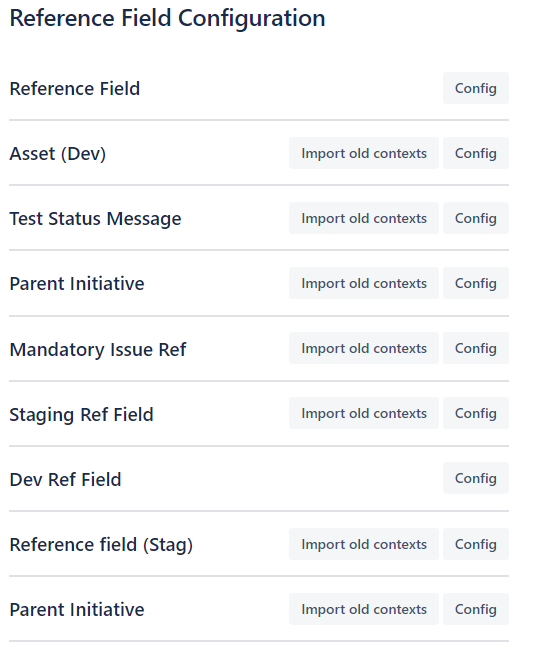
The existing custom fields will be displayed with their current configuration.
Click the Edit button next to the custom field you wish to configure.
Configure the following settings:
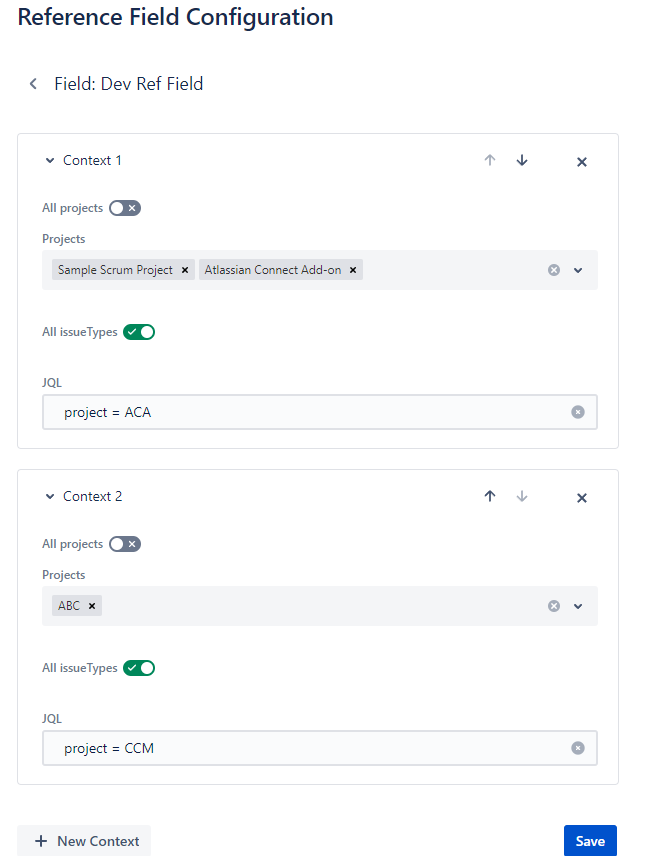
- JQL Query: Enter a JQL statement that determines which issues will be available for selection in this field
- Display Format: Choose how the issue is displayed in the field (summary, key, etc.)
- Link Type: Optionally select a Jira link type to automatically create a link when an issue is selected
- Additional Settings: Configure any other field-specific options
Click Save to apply your configuration.
How to Use
Using the Issue Reference Field in an Issue
To use the Issue Reference field in an issue:
Navigate to an issue that has the Issue Reference custom field.
Click on the Issue Reference field to display the issue picker.
Start typing to search for an issue from the list. The search is performed against the JQL query configured for the field.
Select the desired issue from the dropdown list.
The field will update with your selection and optionally create a linked issue relationship.
Viewing and Editing Issue References
Once you have selected an issue in an Issue Reference field, you can:
- Click on the issue reference to navigate to that issue
- Edit the field to change the referenced issue
- Remove the reference by clearing the field
- View the relationship directly in the issue view panel
Privacy & Security
The Simple Issue Links app follows Jira Cloud's security and privacy standards. The app does not store any personal data. All issue reference information is stored within your Jira instance as custom field values.
The app requires read access to issue data to display available issues in the reference field and to support JQL queries. The app does not make any modifications to your data except for optionally creating standard Jira issue links when configured to do so.
For more information on Jira Cloud security, please visit the Atlassian Trust Center.
Limitations and Known Issues
Current Limitations
The Issue Reference Field Type can only reference existing issues - it cannot create new issues inline.
The JQL query is evaluated in the context of the current user's permissions - users will only see issues they have permission to view.
Field limits: The number of selectable issues is limited by the Jira Cloud API response limits.
Known Issues
When using complex JQL queries, the issue picker may take longer to load as it evaluates the entire result set.
In some cases, the issue picker may not display all results if the JQL query returns a very large number of issues. We recommend refining your JQL to limit results to a reasonable number.
For the latest information on limitations and known issues, please visit our support portal.
Use Cases
Portfolio and Hierarchy Management
Use Simple Issue Links to create parent-child relationships between issues, allowing you to build portfolio hierarchies. For example:
- Programs contain Initiatives
- Initiatives contain Epics
- Epics contain Stories
This allows for better planning and tracking of work at multiple levels.
Customer and Support Request Linking
Create a field that links support requests to specific customer records. The JQL query ensures that agents can only select from active customers.
project = "CUSTOMERS" AND status = "Active"Release and Version Planning
Link issues to specific product releases using an Issue Reference field configured with a JQL query that displays only released versions.
issuetype = Release AND status = "Planned"Dependent Work Management
Track dependencies between issues by creating an Issue Reference field that displays issues that must be completed before the current issue can proceed.
project = CURRENT_PROJECT AND status = "In Progress" AND type != "Block"Cross-Project Linking
Establish relationships between related issues across different Jira projects using simple, user-friendly selection instead of traditional issue links.
project in (PROJECT1, PROJECT2) AND resolution = "Unresolved"