
Appearance
Show Related Issues for Jira Cloud
Display related issues using JQL queries directly in your issue view.
Introduction
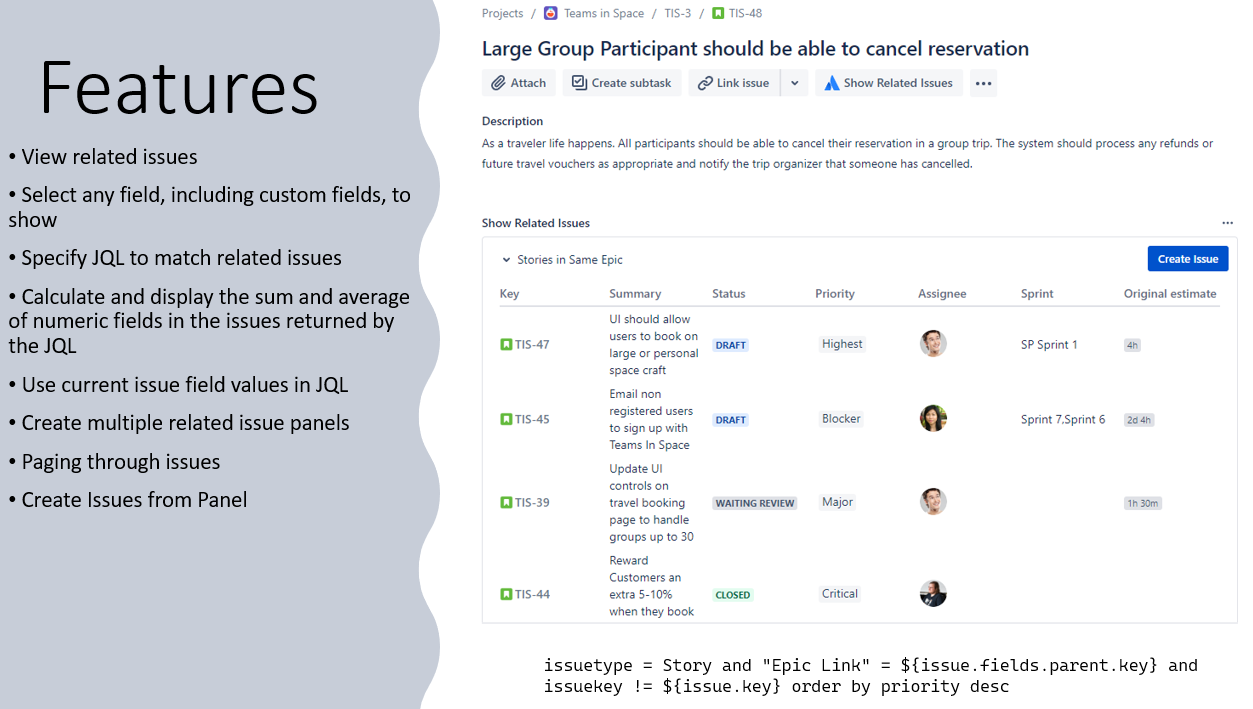
Show Related Issues allows users to easily see a list of issues that are related to the current issue. The standard way to create relationships between Jira issues is through issue linking. But the relationship between issues is not necessarily through explicit links; it could be through some common attribute such as a common customer, same epic, or all issues part of the same release. This commonality can be expressed as JQL e.g. all the issues with the same reporter as the current issue that are in the Open state.
The purpose of the Show Related Issues app is to give users an easy way to view an issue and all its related issues on the same screen. The app can do this by displaying a panel within the standard Jira issue view, which contains a list of the results of the JQL query that has been defined for that panel. The JQL query finds all other issues that are related by some common set of attributes.
Installation
Log into your Jira instance as a Jira Administrator.
Click the Apps dropdown and choose Find new apps.
- The Find new apps screen loads.
Search for Show Related Issue and click on the app tile.
- The App Details screen loads.
Click Get app to start installing your app.
You're all set! Click Close in the Installed and ready to go dialog.
Creating a Related Issue Panel
We will begin by creating a Related Issue Panel to display related stories. The related stories are those that have the same Epic Parent i.e. the same Epic Link. For example, if we have Epic 1, and it contains 10 stories, then within each Story issue view, we will be able to see a panel containing links to the other 9 stories that have the same Epic parent.
Navigate to the Apps administration screen.
Select Show Related Issues under the Apps section. Click Allow Access if this is your first time configuring the app. On the next page, review the permissions and click on Accept.
The Related Issues Panel configuration page will display all the Related Issues Panels.
Click the "+ New Panel" button.
Provide a Name for your Related Issues Panel e.g. Related Stories.
Select the Projects where this panel should appear. Then select the relevant issue types where the panel will appear. In this case we will be selecting Story.
Select the fields you wish to display in the panel.
In the JQL field insert:
issuetype = Story and "Epic Link" = ${issue.fields.parent.key} and issuekey != ${issue.key}Note:
${issue}is the current issue where the panel is being displayed.Click Save and then Confirm.
Navigate to a Story that belongs to an Epic containing several other stories.
Click the Issue Panel button.
The Related Issues Panel should appear and display the other stories from the same Epic.

Using the ${issue} syntax
The ${issue} specifier allow us to reference the issue context for the current issue i.e. the issue that is being displayed by the user in the issue view screen. The ${issue} contains the JSON formatted issue data as returned by the Jira Cloud REST API.
An easy way to see this is to use the following URL in your browser:
https://<yoursite>.atlassian.net/rest/api/3/issue/<your issue key>where you must replace <yoursite> with the name of your Atlassian cloud site, and <your issue key> with a valid issue key in Jira. If successful, this will return the JSON structure for the issue. You can use this to determine the values that should be used to access the fields of your issue.
Here are some examples:
- Priority:
${issue.fields.priority.name} - Status:
${issue.fields.status.name} - Custom Field (Text):
${issue.fields.customfield_xxxxx}wherecustomfield_xxxxxshould be replaced by your customfield identifier e.g.customfield_12345 - Custom Field (Select):
${issue.fields.customfield_xxxxx.value}
Using the $issueLinks macro value
We can also reference the collection of linked issues in the current issue by using the value $issueLinks in our JQL query in the configuration of the panel.
For example, if you wanted to display all issues linked to issues which are in turn linked to the current issue you could use:
linkedIssue in ($issueLinks)How to Use
First Use - Grant Access
The first time you use the app, you need to grant access to the app. You will be presented with the following screen:
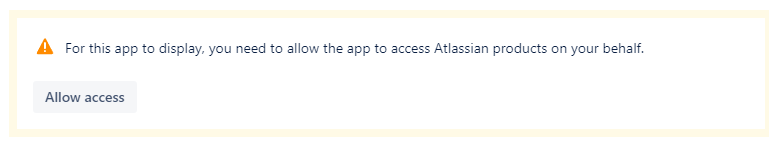
Click Allow access. On the next screen you will be presented with a list of permissions. Please review these and if you have any questions please contact us. The app only requires read access to data and does not make any updates.
Viewing the Related Issue Panel
To view the Related Issue Panel just click the Related Issues button in the issue view.

The Related Issues panel will display below the description field.
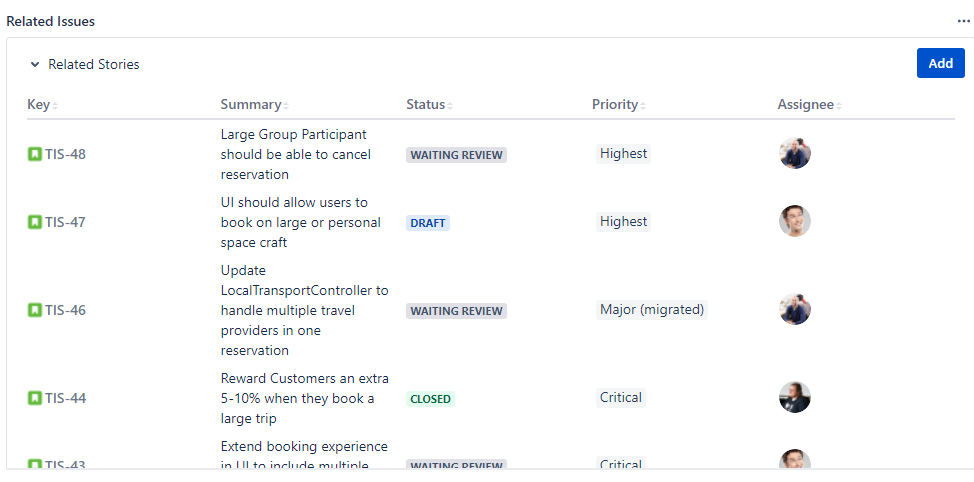
The Add button will launch the Create Issue screen. At this time, the Create Screen will allow you to create any issue. This issue may or may not fit the JQL criteria for the Related Issue Panel. In future we hope to customize this to allow you to add an issue that meets the criteria by setting default values in the Create Issue screen for the relevant fields.
Privacy and Data Security
The app does not store any personal data. See the Data Security Policy for more information.
Use Cases
Service Desk - View Related Customer Cases
In this use case we can imagine that an agent is working on a ticket for a customer. The ticket (issuetype Support) has a field called Customer which contains the customer's company name. The agent would like to see a list of all the existing tickets of this customer. This gives the agent some context and useful information to help resolve the issue - for example the agent might notice that there is an existing ticket reporting the same problem or might identify that the reported problem is recurring.
We can create a Related Issue Panel by:
Click the "+ New Panel" button.
Provide a Name for your Related Issues Panel e.g. Related Customer Cases
Select the Projects where this panel should appear i.e. the relevant Service Desk Project. Then select the relevant issue types where the panel will appear. In this case we will be selecting Support.
Select the fields you wish to display in the panel.
In the JQL field insert:
"Customer" = ${issue.Customer} and issuekey != ${issue.key}Click Save and then Confirm.
Asset Management - View History of Issues Related to an Asset
In this use case we have a Jira project which records our Assets. Our Assets consist of Hardware devices and Software Licenses. We record information such as the asset tag id, the current location, and where the asset is stored/installed.
We would also like to see the history to problem tickets related to the asset. In our problem management project we have a field which identifies the asset(s) that are relevant in a particular case.
We can create a Related Issue Panel to show this list by:
Click the "+ New Panel" button.
Provide a Name for your Related Issues Panel e.g. Related Asset Tickets
Select the Projects where this panel should appear i.e. the relevant Asset Management Project. Then select the relevant issue types where the panel will appear. In this case we will be selecting Hardware Asset.
Select the fields you wish to display in the panel.
In the JQL field insert:
"issuetype = Problem" and "asset id" = ${issue.asset id} and issuekey != ${issue.key}Click Save and then Confirm.
Test Case and Test Cycles
In this situation we are using Jira to manage testing. We have Test Cycles which contain one or more Test Cases. Test Cycles and Test Cases are issue types. The user will create Test Cases and Test Cycles using these issue types. When a new Test Case is created, we relate it to a Test Cycle by selecting the Test Cycle from a field.
When you view the Test Cycle, a Related Issue Panel called Test Cases will appear and will list the Test Cases that are related to this Test Cycle. The Test Cases issue panel will only appear in the Test Cycle.
The instructions for setting this up are similar to the above use cases. If you need help please get in touch.
Epics in Initiative / Initiatives in Program / Programs in Portfolio
This is an example of using specific versions of the panel for different levels in the Project Portfolio. In this case the issue type Initiative will have a panel called Epics in Initiative. The Program issue type will have a panel called Initiatives in Program, and the Portfolio issue type will have a panel called Programs in Portfolio. The functionality of each is very similar; each will have a button to create the respective issue.
To use Show Related Issue effectively you need to have a common field that relates the issues with one another and you need to be able to express this relationship in JQL. One way to build these relations is through the Simple Issue Links app (free). This allows you to build special select list fields that contain a list of issues. The list of issues that should be displayed in the select list is configured using JQL.